
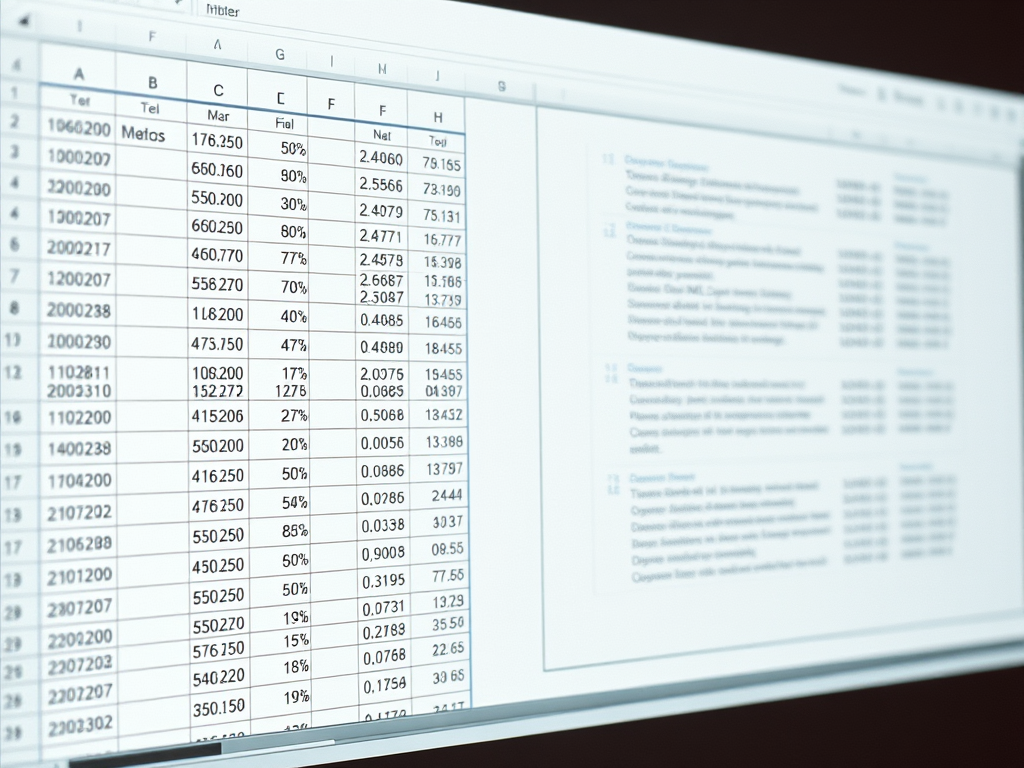
We recently received a support ticket where the user wanted to generate a sample XML document for each row within an Excel spreadsheet.
This is easy to achieve using Liquid Data Mapper.
Here is our Spreadsheet data:

And here is a simple Data Mapping to create an XML document from the Excel data:

However, this will create a single XML document containing all rows from the Excel spreadsheet. In order to output multiple XML documents, i.e. one per row, we need to make a few simple changes:
- Right click on the Xml Writer and select ‘Toggle Simple View’ to show the Filename node.
- Connect the Excel Reader ‘Row’ node to the Xml Writer ‘bookstore’ node.
- Add a ‘Concat’ component and a ‘Const’ component.
- Set the type of the ‘Const’ to be a string and the value to be .xml.
- Connect the ‘Title’ node to the String 1 of the Concat.
- Connect the ‘Const’ to the String 2 of the Concat.
- Connect the Concat to the Filename node.

When we run the updated transform, we now see three XML documents are generated ‘The Graveyard Book.xml’, ‘The Portable Door.xml’ and ‘XML Schemas.xml’. Each XML document contains the Row data specific to the book.
Further Reading
Please see the data mapper documentation for additional information about transforming Excel to XML in Liquid Data Mapper.
Download a Free Trial of Liquid Data Mapper:
https://www.liquid-technologies.com/trial-download