-
Convert between XML and JSON documents and schema

Liquid Studio 2017 offers various tools for converting between XML and JSON formats, including graphical schema design and sample document creation. Users can create, view, and export XML and JSON files with customizable settings. Additionally, the software provides inferencing tools for JSON and XML schemas, enhancing usability for developers.
-
Symantec Endpoint protection is falsely reporting infected files
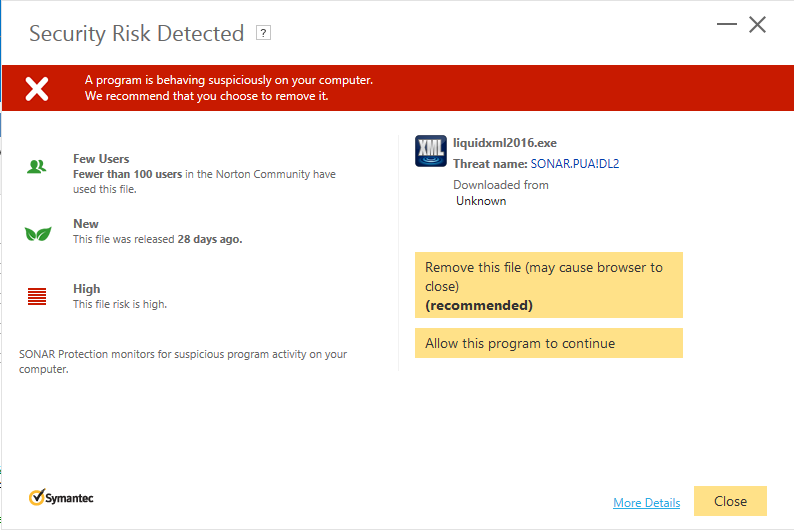
Symantec Endpoint Protection mistakenly identified the Liquid XML install as posing a threat due to the SONAR.PUA!DL2 virus. This was reported to Symantec on June 30, 2016. After verification, Symantec confirmed the file liquidxml2016.exe will be whitelisted, and no virus exists when downloads occur from their official website.
-
NEW JSON Schema Editor in Liquid XML 2016

Liquid XML 2016 introduces a new graphical JSON Schema Editor, enhancing user experience with an intuitive drag and drop interface. It simplifies visualization, authoring, and navigating complex JSON Schemas, supports the IETF draft 4.0 Standard, and provides real-time error reporting.
-
Issue Installing on Windows 10 – External exception 80000003
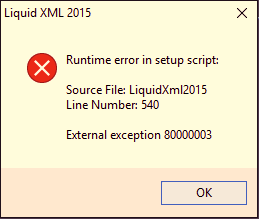
The Liquid XML installer stopped functioning on Windows 10 due to a Microsoft update on December 28, causing a runtime error and crashes. An updated installer (v13.2.3) has been released to fix this issue. Users can find more information in the knowledge base, and feedback is encouraged.
-
Default Proxy Settings for Large Rollouts
Liquid XML 2014 version 12.2.1 introduces Default Proxy Settings for easier deployment during large rollouts. This update is available as a free upgrade for all 2014 license holders and users subscribed to the Upgrade Support Protection Plan (USPP). More details can be found in the Knowledge Base article provided.
-
Opening Large XML Documents
The Liquid XML Editor can handle XML documents of any size without limits. Features adjust based on file size: under 2 MB allows full features, while over 15 MB switches to the Large File Editor. This specialized editor, functional for files over 2 GB, has limited functionality but supports document formatting and validation.
-
Using the Create Sample XML Document tool
The Create Sample XML Document tool assists users in creating XML documents based on XML schemas (XSD). It ensures that target namespaces are correctly declared, preventing validation errors that can cause frustration. This tool streamlines the initial document creation process, allowing users to avoid common pitfalls associated with XML schemas.
-
How to handle Oracle Fusion (SOA) XSD Imports with the ‘oramds’ prefix
Oracle Fusion (SOA) uses “oramds” in the schemaLocation attribute for XSD files in its Metadata Services repository. When exported for editing, XML Editor tools may show invalid import paths. This can be resolved in Liquid XML Studio by creating an XML Catalog file to redirect paths for successful imports.
-
How to create a sample XML Document from an XML Schema (XSD)
To create a sample XML Document, open the XML Schema (XSD) and select Tools->Create Sample XML Document. This document will feature a schema location attribute linking it to the XSD. By clicking Validate, Liquid XML Studio will validate the XML Document against the associated XML Schema.
-
How to validate an existing XML Document against an XML Schema
To validate an XML Document against an XML Schema (XSD), you can either attach the schema through Tools->Attach Schema, adding a schema location attribute, or use Tools->Schema Used to Validate XML for an internal association. Validation occurs via Liquid XML Studio using the associated schema during the process.
